Studio: the main editor
Editors3 min read
Studio is a chat with a model. You describe what you want, it replies with an image, a video or text. The whole history is saved, like in a messenger.
Open the editor: Studio
Step 1. Pick a model
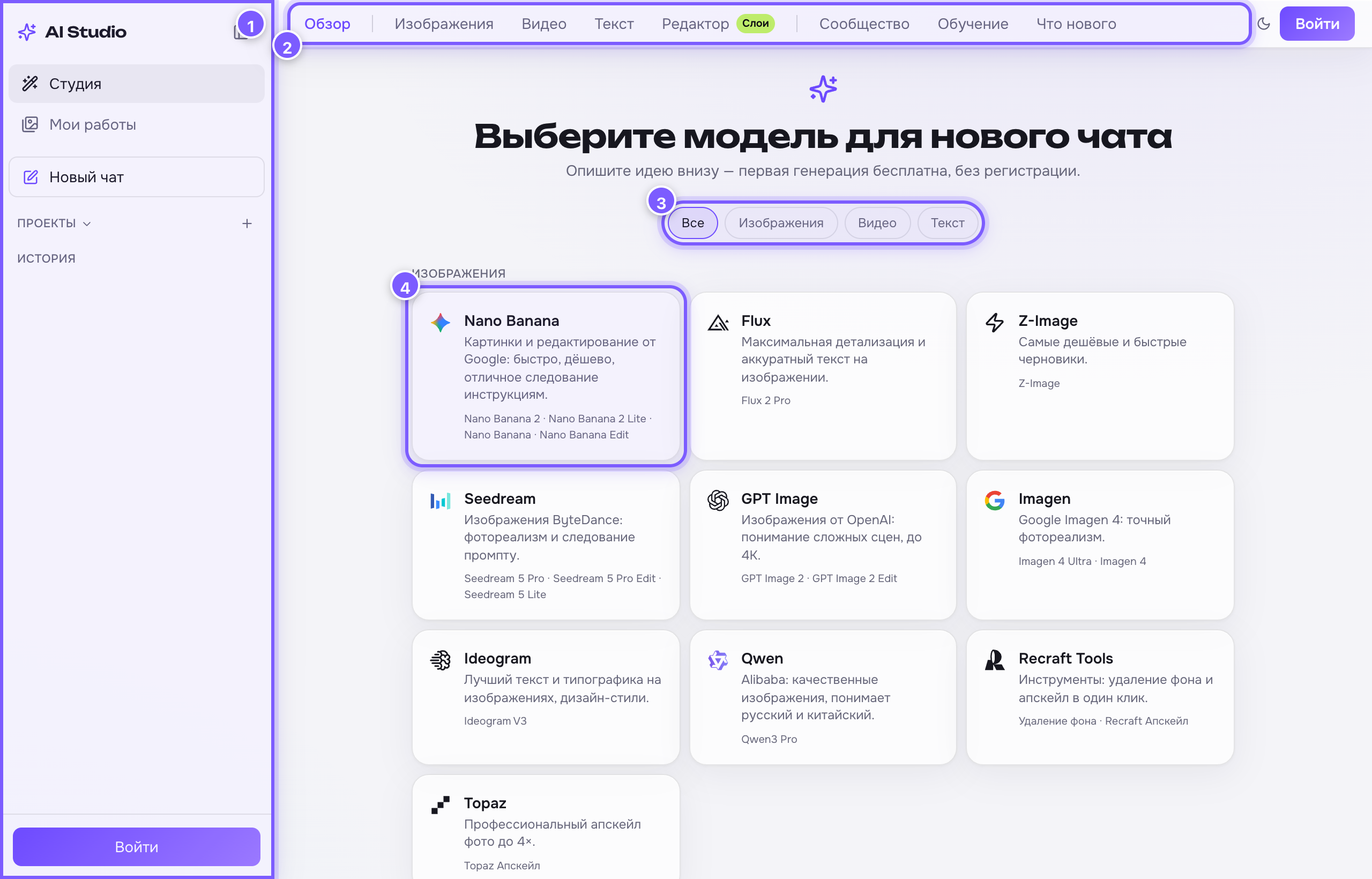
- Sidebar — Studio, My works, New chat, projects and chat history.
- Top menu — Images, Video, Text, Editor. Hover to see the tools inside.
- Filter — show only image, video or text models.
- Family card — click to open a chat. Versions are listed at the bottom of the card; you can switch between them later.
Step 2. The composer
The composer is the bar at the bottom where everything happens.

- Prompt field — describe what you want. Enter sends, Shift+Enter adds a line. On models that support a negative prompt, two tabs appear above the field: "Prompt" and "Negative prompt".
- Paperclip — attach your own image (a reference).
- Gear — the rest of the model's settings.
- Chips — the most-used settings at hand: aspect ratio, resolution, duration. Click a chip to pick a value.
- Model version — Nano Banana 2 or 2 Lite, for example. Click for the list with prices.
- Send button — shows the price in credits.
Chips: the quick picker
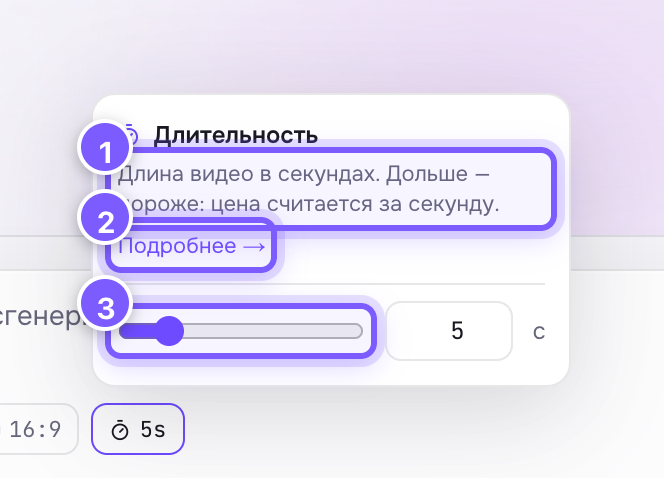
- What the setting does.
- Learn more → — the full article.
- A slider or value buttons.
Video models usually have three chips: aspect ratio, resolution and duration.

- Aspect ratio. 2. Resolution. 3. Duration. 4. The gear with everything else. 5. Send, with the price.
The gear: everything else
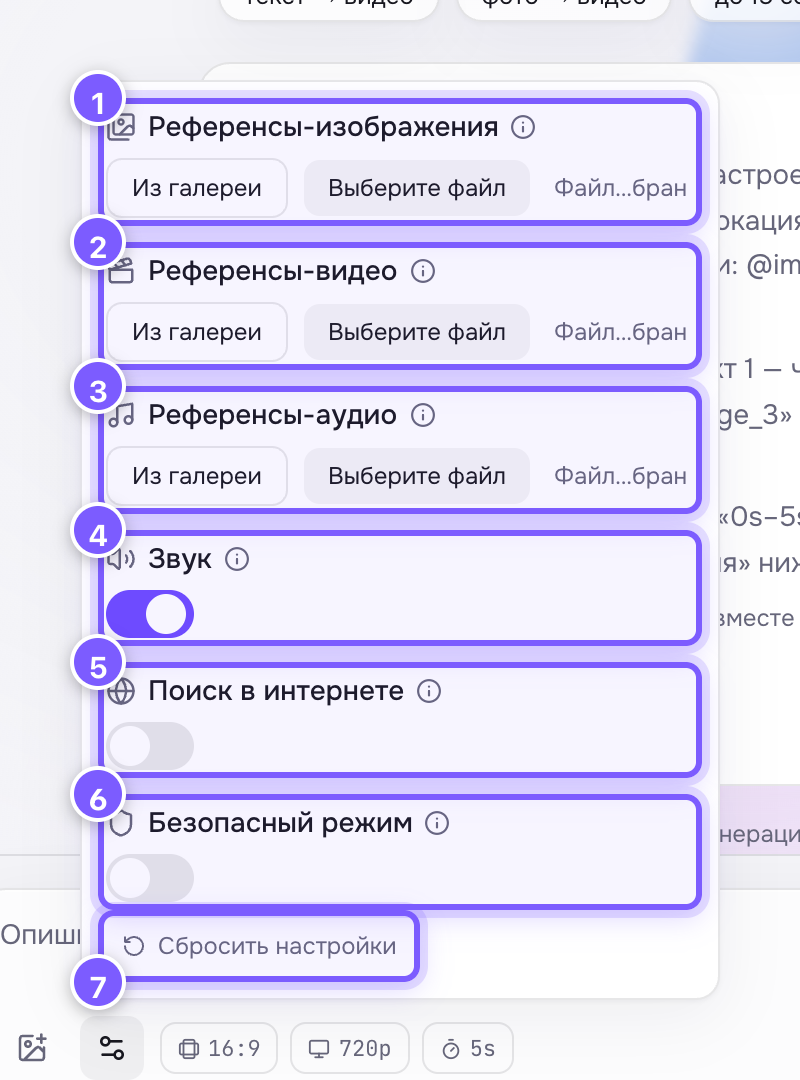
- Image references. 2. Video references. 3. Audio references. 4. Sound. 5. Web search. 6. Safe mode. 7. Reset settings — back to defaults.
Each model has its own set: if something is not in the list, that model cannot do it.
Text chat
Pick Claude, GPT, Gemini or Grok and Studio behaves like a regular chatbot.

- Question field. 2. Attach an image — the model will look at it. 3. Model version. 4. Send.
Projects and history
- New chat — start fresh.
- History — all past chats. Double-click a title to rename it.
- Projects — folders for chats: client, campaign, topic.