Relight: change the light in a photo
Editors2 min read
Relighting repaints the light in an existing photo. The person, the pose and the background stay the same; only the lighting changes — an overcast shot becomes a golden sunset.
Open the editor: Relight
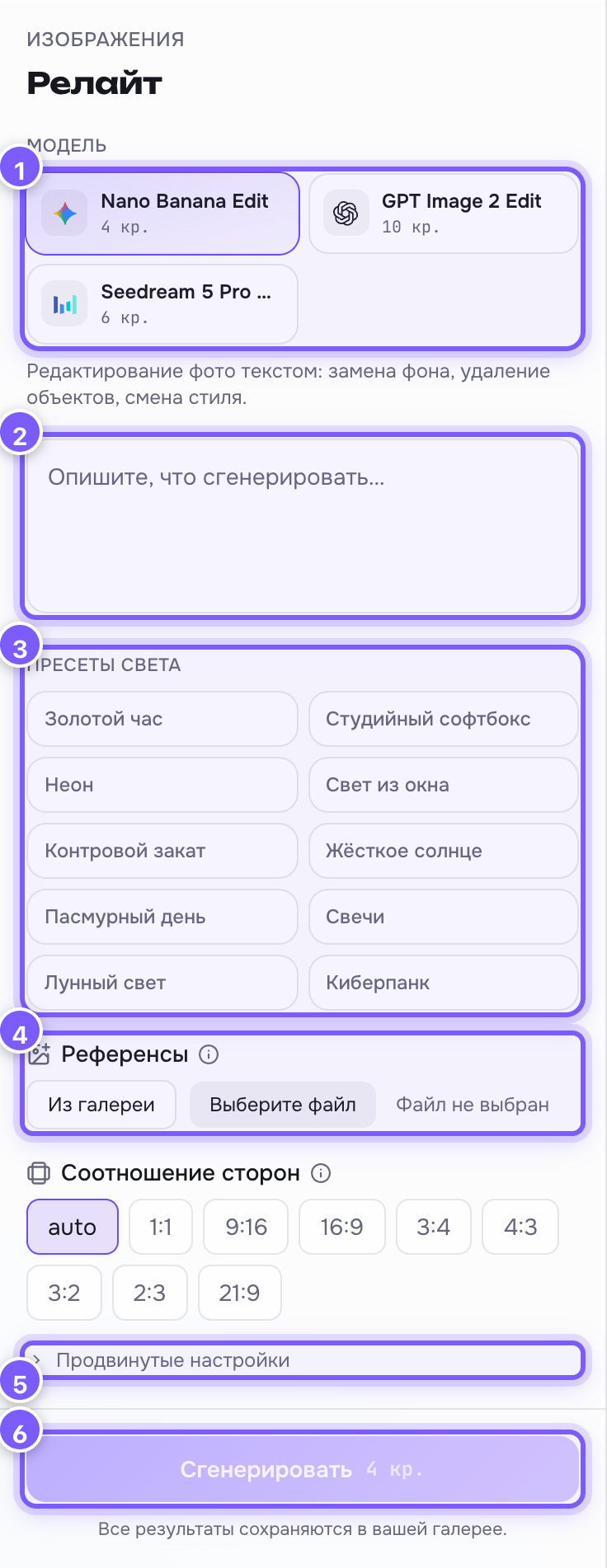
- Model — the network that edits the photo. Nano Banana Edit by default, the cheapest one.
- Prompt field — a preset drops ready-made text here. Edit it or write your own.
- Light presets — 10 ready options. Click one and its description goes into the prompt.
- References — upload the photo to be relit here. Without a photo the button stays off.
- Advanced settings — rare parameters hidden under this row.
- Generate — run it.
What the presets mean
| Preset | The light |
|---|---|
| Golden hour | Warm low sun, long soft shadows |
| Studio softbox | Even soft light, like in a photo studio |
| Neon | Magenta and cyan lights, dark background |
| Window light | Soft daylight from the side |
| Sunset backlight | Sun behind the subject, glowing rim |
| Hard sun | Midday, crisp deep shadows |
| Overcast | Diffuse, shadowless light |
| Candlelight | Warm, intimate low light |
| Moonlight | Cool blue night |
| Cyberpunk | Saturated neon reflections, wet asphalt |
How to get a good result
- Use a photo where the face and subject are sharp. A blurry source stays blurry.
- A preset is just ready-made text. Add your own: "...and a light haze".
- Every preset already ends with "do not change the subject", which is why the light changes and the person does not.
The result
A before/after slider — drag it to see what the new light did.